Instagram Backup Codes: Find, Use, Replace, and Troubleshoot Them
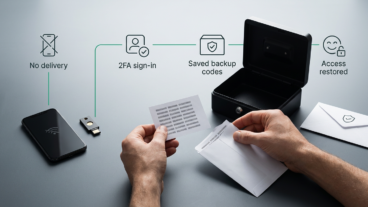
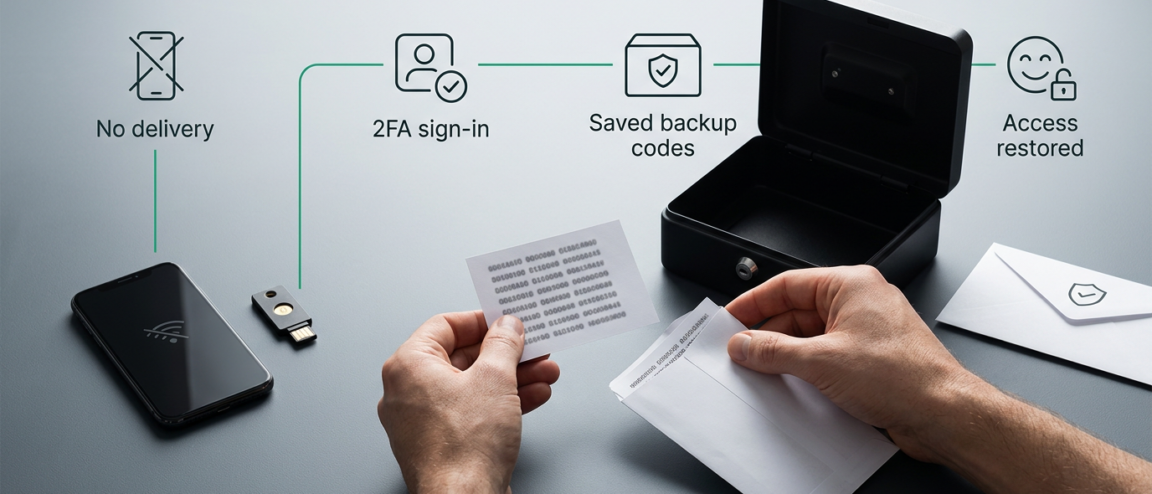
Instagram backup codes get you through two-factor sign-in when your usual code can’t be delivered, in four steps:
- Find your codes under Two-factor authentication settings while signed in.
- Enter a code from your current saved list at Instagram’s official sign-in prompt.
- If you’re still signed in, use Get new codes to replace a lost or exposed set.
- Go to instagram.com/hacked if you can’t sign in or suspect compromise.
On this page
Most people only look for their Instagram backup codes at the worst possible moment — a dead phone, a text that never arrives, an authenticator app on a device that’s out of reach. This guide walks through where those codes actually live, how to use one at a real sign-in prompt without falling for a fake one, how to generate a fresh set safely, and what a rejected code usually means. It also separates the cases you can fix yourself from the ones that call for Instagram’s official recovery process, so you’re not stuck retrying the same code while the real problem sits somewhere else.
Find and use backup codes before you need them
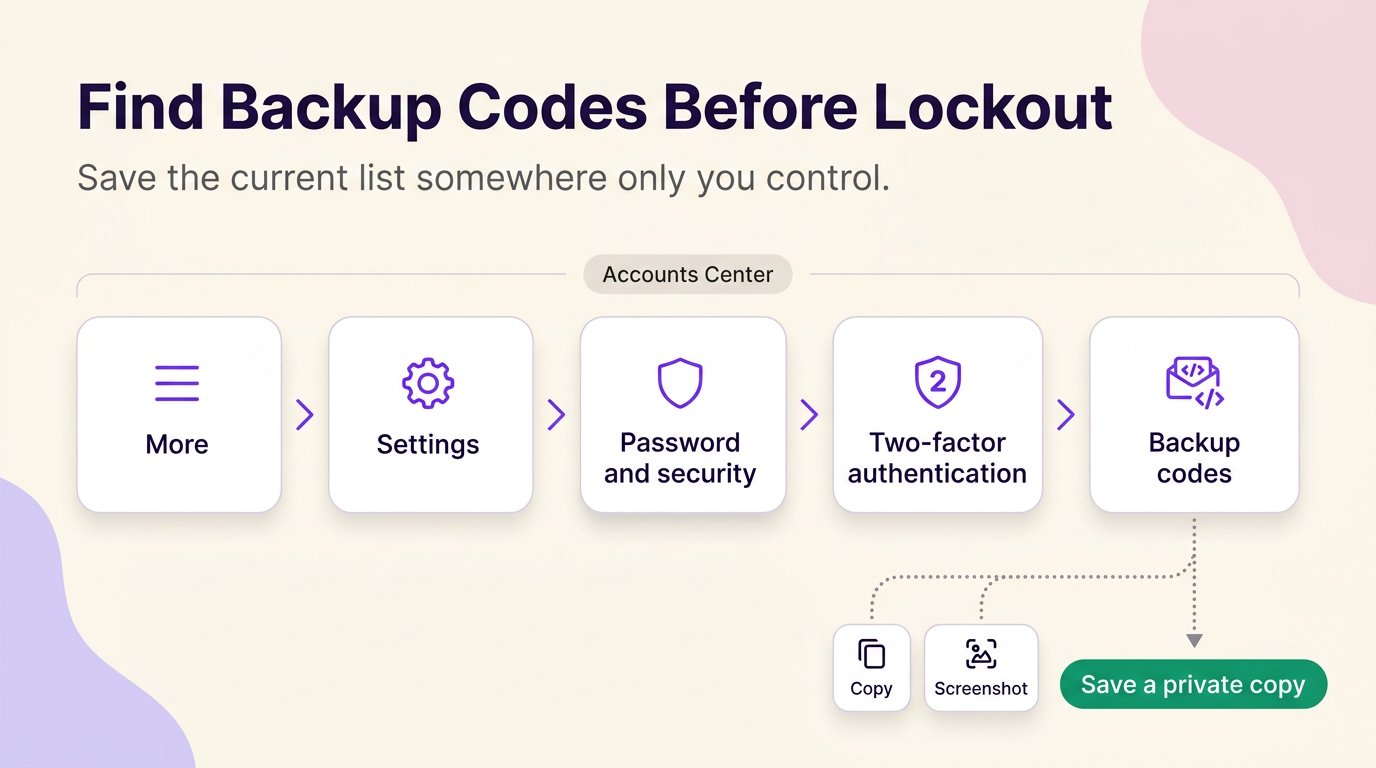
Backup codes live inside your two-factor authentication settings, not in an email or a push notification, so you have to open them yourself before you’re locked out. While signed in on a computer, the documented route is More > Settings > Accounts Center > Password and security > Two-factor authentication, then select your account and open Additional methods > Backup codes; some accounts show Meta Account settings in place of Accounts Center. Once the list is on screen, save it — copy it, screenshot it, or store it another way. Instagram’s own instructions put saving the list on you, not on the app, so don’t leave that screen without a copy somewhere safe.
Use the current Instagram security route, not a guessed menu path
Say you’re switching to a new phone before your current one dies, and you want your codes ready first. While signed in, follow the same path — More, Settings, Accounts Center or Meta Account settings, Password and security, Two-factor authentication, your account, then Additional methods and Backup codes. Menu wording and order can shift by app version and account setup, so if a label doesn’t match exactly, look for Two-factor authentication and Backup codes specifically rather than a different security screen entirely.
Enter your backup code only at Instagram’s legitimate sign-in prompt
The most common mistake is typing a backup code into a prompt reached through a link from an email or text that only claims to be Instagram. Confirm the request is happening inside the Instagram app or on instagram.com, with your own username showing, before you enter anything. A backup code isn’t your password, and it’s only entered at Instagram’s two-factor sign-in step — follow the on-screen instructions there to enter a code from your saved list. A successful entry moves you into your account or to Instagram’s next verification step, not to a generic confirmation message with no further access. If the code is rejected, don’t keep resubmitting it; try another code from your current list, or move to the troubleshooting steps later in this guide. Never send a backup code to anyone who contacts you claiming to be Instagram support.
Backup codes are a 2FA fallback, not a replacement for your other security methods
A backup code is not a password, not a text-message login code, and not the same thing as starting account recovery — it’s a stored fallback you use only at the two-factor step, when your usual method can’t reach you. When you turn on two-factor authentication, Instagram has you choose SMS codes or a third-party authentication app as your primary security method; the authentication app generates a login code to help confirm your identity on a new device. Backup codes exist alongside that primary method, for the moments your phone has no signal or a text simply doesn’t arrive. For an account with two-factor authentication enabled, a backup code can complete the sign-in when a standard code can’t be delivered because of a connectivity or delivery problem — it doesn’t unlock a locked account, and it doesn’t replace the checks Instagram runs during account recovery.
Create a replacement set without losing track of the old one
Regenerating your codes is not the same as just checking whether you still have any left, and treating it that way is how people lock themselves out mid-task. While signed in, open Backup codes under Additional methods and select Get new codes; this cancels your current set and issues a new one. Copy or screenshot the new list right away — Instagram’s guidance is to save codes as soon as they’re displayed, not to count on seeing the same ones again later. Because Get new codes explicitly cancels the current set, don’t run it as a first move if you’re mid-sign-in on another device and still relying on one of your existing codes; finish that sign-in first, then regenerate afterward. If you’re holding an older written-down list and aren’t sure it’s still current, treat the codes on screen right now as the ones that count, and don’t assume an old copy still matches them.
When an Instagram backup code is not working, choose the branch that matches your access state
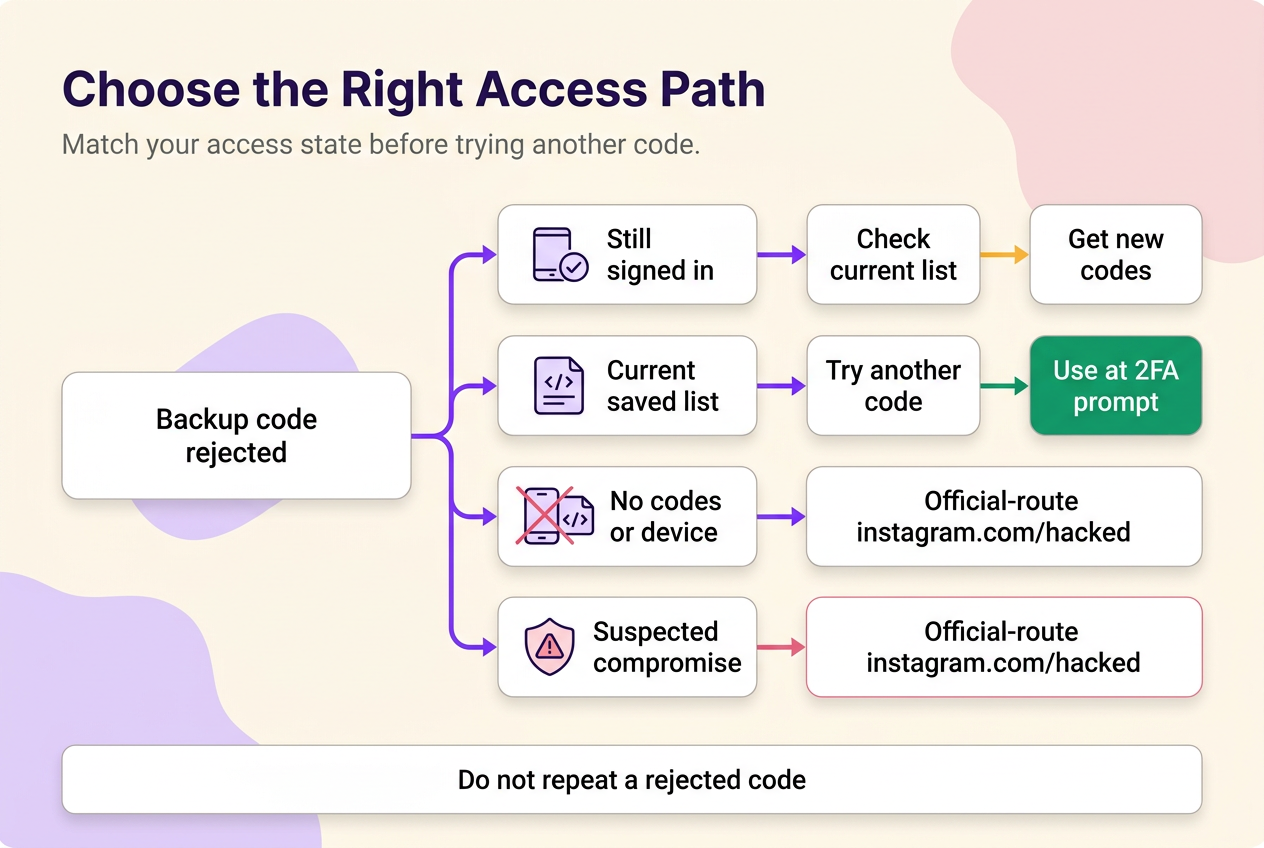
A rejected backup code isn’t something you can diagnose from the error message alone — Instagram doesn’t publish the exact cause. What you can control is your access state: whether you’re still signed in somewhere, whether your saved list is current, and whether the account itself looks compromised. Match your situation to one of the rows below instead of resubmitting the same code.
| What you still have | Your access state | Safe next step | Do not do |
|---|---|---|---|
| A code from your current saved list | Signed in or able to reach the 2FA prompt | Enter it at the sign-in prompt, following the on-screen instructions | Retype a code that was already rejected |
| Only an older, already-replaced list | Still signed in somewhere else | Open Backup codes and check it against the currently displayed set, or generate a new one with Get new codes | Assume an old written list still matches what’s on screen now |
| A code that was just rejected once | Uncertain whether the list is current | Try another code from your saved list, or verify it against a signed-in session before retrying | Submit the same code repeatedly |
| No saved codes and no access to phone or authenticator | Fully locked out, no working 2FA method | Use Instagram’s login-help / account-recovery flow at instagram.com/hacked | Turn off two-factor authentication to get back in faster |
| Signs the account itself was accessed by someone else | Suspected compromise | Go to instagram.com/hacked and secure the account | Keep trying codes on a session you don’t trust |
If more than one row seems to fit, treat a suspected compromise as the priority read, not an on-screen status message. An account-status notice or a generic error page tells you Instagram flagged something; it doesn’t tell you why, and it isn’t itself a cause you can fix — so check the simpler possibilities first: an outdated list, a mistyped code, or a session that’s no longer signed in anywhere. Working down that order costs the least time and the least risk of locking yourself out further. These rows cover the access states reported most often; if none of them matches yours exactly, default to the recovery or hacked-account route below rather than continuing to guess.
No backup code and no 2FA device? Move to official account recovery
Picture losing your phone with your authenticator app on it, and realizing your saved backup codes were on a note in that same phone. If you’re still signed in to Instagram anywhere else — another logged-in device or browser session — you can reach Backup codes from there and generate a fresh set, which solves the problem without going through recovery at all. That option disappears once there’s no signed-in session left anywhere.
At that point, disabling two-factor authentication is not a fix — it removes a layer of protection without restoring the access you’ve lost. If someone may have gained access to the account, or sign-in simply isn’t possible, Instagram directs users to instagram.com/hacked to secure the account. Follow the steps Instagram presents there; recovery requirements and outcomes can vary, and the process doesn’t run on a fixed timeline. This is also the point to stop searching for a third-party recovery service — stick with Instagram’s own flow rather than a paid intermediary. Once you’re back in, treat two-factor authentication as unfinished business: regenerate your backup codes immediately and confirm your primary method is still one you control.
Keep backup codes private—and replace them if they may be exposed
Saving your backup codes somewhere you’ll actually find them is good practice; saving them somewhere other people can also find them is the mistake that undoes it. A screenshot sitting in a shared photo library, a note in a team folder, or a code pasted into a group chat is no longer private to you, even after you delete the message — anyone who saw it may still have a copy. If you think a code may have been seen by someone else, don’t just delete the copy; sign in and use Get new codes to cancel the exposed set and generate one only you have. Never send a backup code to anyone, including someone contacting you claiming to be Instagram support.
Quick answers about Instagram recovery codes and 2FA
Can I use the same Instagram backup code twice?
Instagram’s documented behavior only confirms that generating a new set cancels every code from the previous one — it doesn’t say whether an individual code can be reused before that happens. The safer approach is to treat each code as good for one sign-in and keep at least one unused code in reserve.
Do old backup codes still work after I generate a new set?
No. Selecting Get new codes cancels your current backup codes and replaces them with a new set, so anything from before that point stops being useful — only the list displayed after regeneration is current.
Is account recovery different for business or creator accounts?
We can’t confirm a separate recovery path by account type from Instagram’s published guidance. Whatever your account type, instagram.com/hacked is the starting point if you can’t sign in or suspect compromise.
Should I ever give my backup code to someone claiming to be Instagram support?
No. A backup code deserves the same handling as a password: don’t share it with anyone, whatever account or authority they claim to represent, and regardless of how urgent the request sounds.
Two-factor authentication and backup codes exist to protect account access; sharing codes, passwords, or login links with anyone — including a person claiming to represent Instagram — removes that protection and cannot be undone by deleting a message afterward.
 120,000+ creators say yes
 Real Active Accounts


 Username Generator
  Hashtag Generator
  Font Generator