How to Hide Followers on Instagram: What You Can and Can’t Control
You can’t hide followers on Instagram from everyone while your account stays public — Instagram says anyone on Instagram and Threads can see who a public account follows and who follows it. What you can actually do:
- Switch to a private account to limit new follower access to people you approve
- On a private account, remove an approved follower to end their access
- Block a specific account so it can’t find your profile, posts, or Story
- Restrict, Mute, and Story controls serve other purposes — none of them change list access
Searches for a hidden-follower switch usually start after noticing an ex, a competitor, or a client can see exactly who’s on your list. Instagram doesn’t offer one setting called “hide followers” — it gives you three separate levers instead: your account’s overall privacy status, the individual people you keep as approved followers, and whether a specific account can find your profile at all. Confusing those levers is the most common mistake: switching to private, for instance, does nothing about someone who was already approved before you changed the setting. The rest of this guide separates what actually changes access from what only changes how you interact with someone.
On this page
The Direct Answer: You Can Limit Access, Not Hide Every List Universally
A public Instagram account has no setting that hides its follower or following list from other users. Instagram’s own comparison of account types says anyone on Instagram and Threads can see who a public account follows and who follows it — see Instagram’s public and private account rules. That documented visibility rule doesn’t carve out a per-person or per-viewer exception, which is why no universal hide-followers toggle exists for public profiles.
Switching to a private account changes that, but only for people who aren’t already approved. A private account requires approval before someone can follow it, and only approved followers can see its posts and profile. Beyond account-wide privacy, two narrower controls matter: removing an approved follower from a private account, and blocking an account outright. Neither is a dedicated “hide list” feature — both work by changing who’s connected to you, which is what governs access in the first place.
First, Decide What You Need Hidden: Names, Counts, Content, or One Person’s Access
Before touching any setting, separate four things people lump together as “hide my followers”: the follower list, the following list, your follower/following counts, and your content itself. These aren’t controlled by the same switch. Instagram lists follower and following counts as public profile information that stays visible whether the account is private or public — counts can’t be hidden either way. The names inside those lists are a separate matter, governed by account privacy and by your relationship with each individual account. If you only want the numbers gone, no setting exists for that; if you want the names gone from strangers, privacy and account-specific controls are what actually apply.
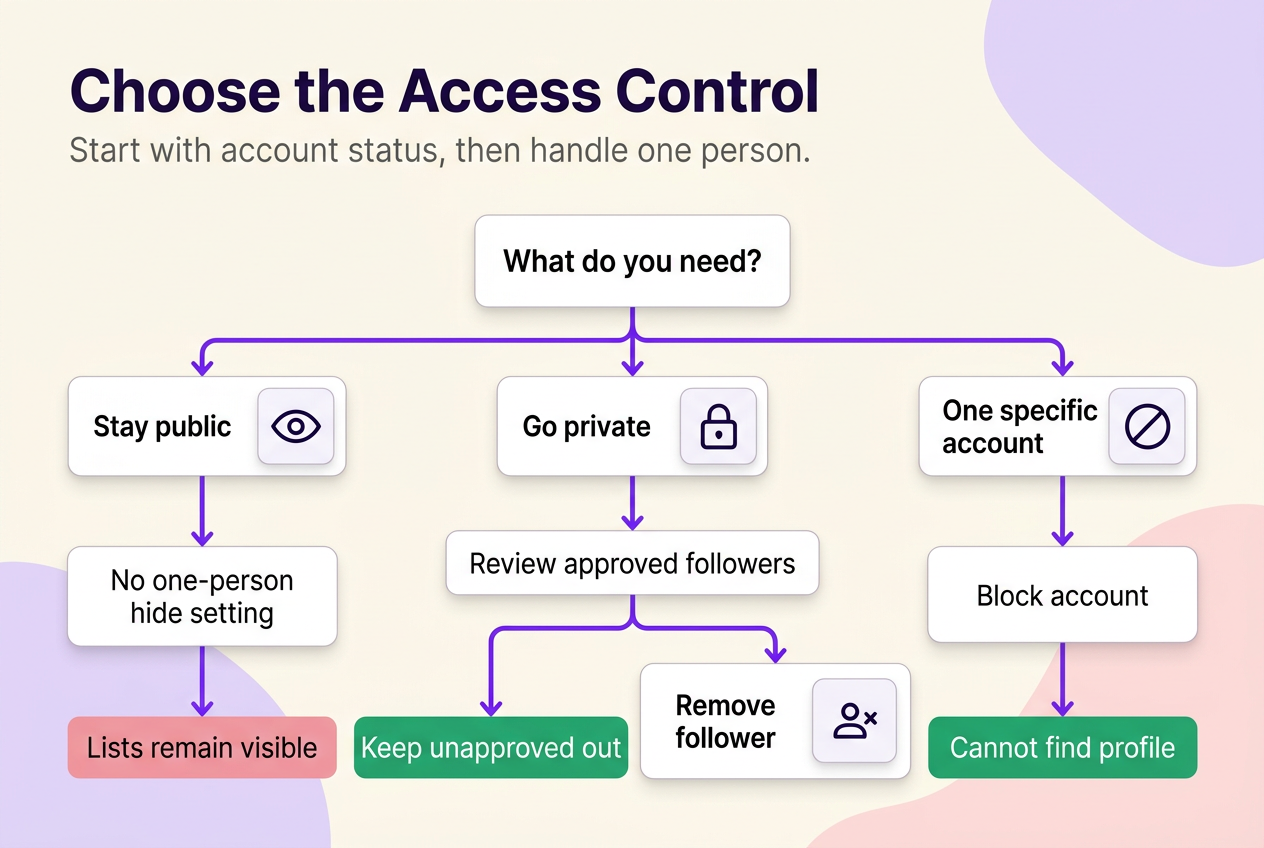
Choose the Right Control for a Public Account, Private Account, or Specific Person
Say your account is public, and a former business partner you no longer want reading your connections still shows up when you check your followers. The right fix depends on which situation you’re actually in — staying public, going private, or dealing with one account — and each has a different answer.
| Situation | What Instagram documents | What to do |
|---|---|---|
| Public account, any viewer | Anyone on Instagram and Threads can see who a public account follows and who follows it | No native setting hides this while staying public; switching to private changes the rule for future viewers |
| Private account, viewer not yet approved | Only approved followers can see a private account’s posts and profile | Keep the account private and don’t approve the request |
| Private account, approved follower you want excluded | Approval can be reversed by removing the follower | Remove the follower to end their approved status |
| Any account, one specific person | A blocked account can’t find the profile, posts, or Story | Block when you need the strongest boundary against one account |
Work in this order: settle your account-wide privacy status first, since it sets the baseline rule for anyone who isn’t already connected to you. Only after that should you deal with individual accounts on a private profile — reviewing who’s already approved, then removing or blocking as needed. On a public account, removing a follower doesn’t change what’s visible, because Instagram documents public-account connections as visible to anyone regardless of who’s on your list; block is the control that actually restricts a specific person there.
Make Your Account Private, Then Review Who Is Already Approved
The mistake nearly everyone makes here is switching to private and assuming it instantly locks out everyone who could see the account before. It doesn’t. Going private changes the rule for new viewers and pending requests; it does nothing about people you’d already approved while the account was public. Closing the gap means handling both the setting and the existing list.
Switch to a Private Account Using the Current Account Privacy Control
Instagram’s own instructions place this control under Account privacy, where a Private account toggle switches the profile over — see Instagram’s private-account instructions. Business profiles can’t use this directly: Instagram documents that professional accounts, the category covering Business and Creator, cannot be private, and its private-account instructions note that a Business profile must convert back to personal first — see professional account privacy limits. Menu wording can shift by app version, account type, and region, so use in-app search if the labels look different on your device.
Remove an Approved Follower or Block Them When You Need a Stronger Boundary
If the person you want excluded already follows your private account, that switch alone won’t touch their access — they’re already approved. Instagram’s instructions confirm you can remove someone from your Followers list and that the removed person isn’t notified — see remove a follower. That ends their approved status, but it isn’t the same as blocking: block additionally stops the account from finding your profile, posts, or Story, and the blocked person isn’t told directly either — see what happens when you block someone. Choose removal when you just want them off the list; choose block when you want them shut out entirely. Neither action notifies the other person automatically, though someone could still notice on their own by checking whether they still follow you.
If You Want to Stay Public, Instagram Does Not Offer a One-Person List-Hiding Setting
No — you can’t hide who you follow, or who follows you, from one specific person while keeping the rest of your account public. Instagram’s public/private comparison doesn’t carve out a per-person exception; visibility for a public account is public, full stop. The realistic choices are two: change your account’s overall access by going private, which affects everyone rather than singling someone out, or block the specific account, which does stop that person from finding your profile, posts, or Story.
Some readers ask about a middle path — a public account for reach and a separate private account for personal connections. Instagram doesn’t publish a rule that turns that into a guaranteed privacy setup; it’s an audience-management habit some people use, not a documented list-hiding feature.
One boundary worth stating plainly: blocking is account-specific, and Instagram’s documentation notes exceptions tied to public activity and group chats, so a blocked person isn’t guaranteed to lose every trace of contact with content you post elsewhere.
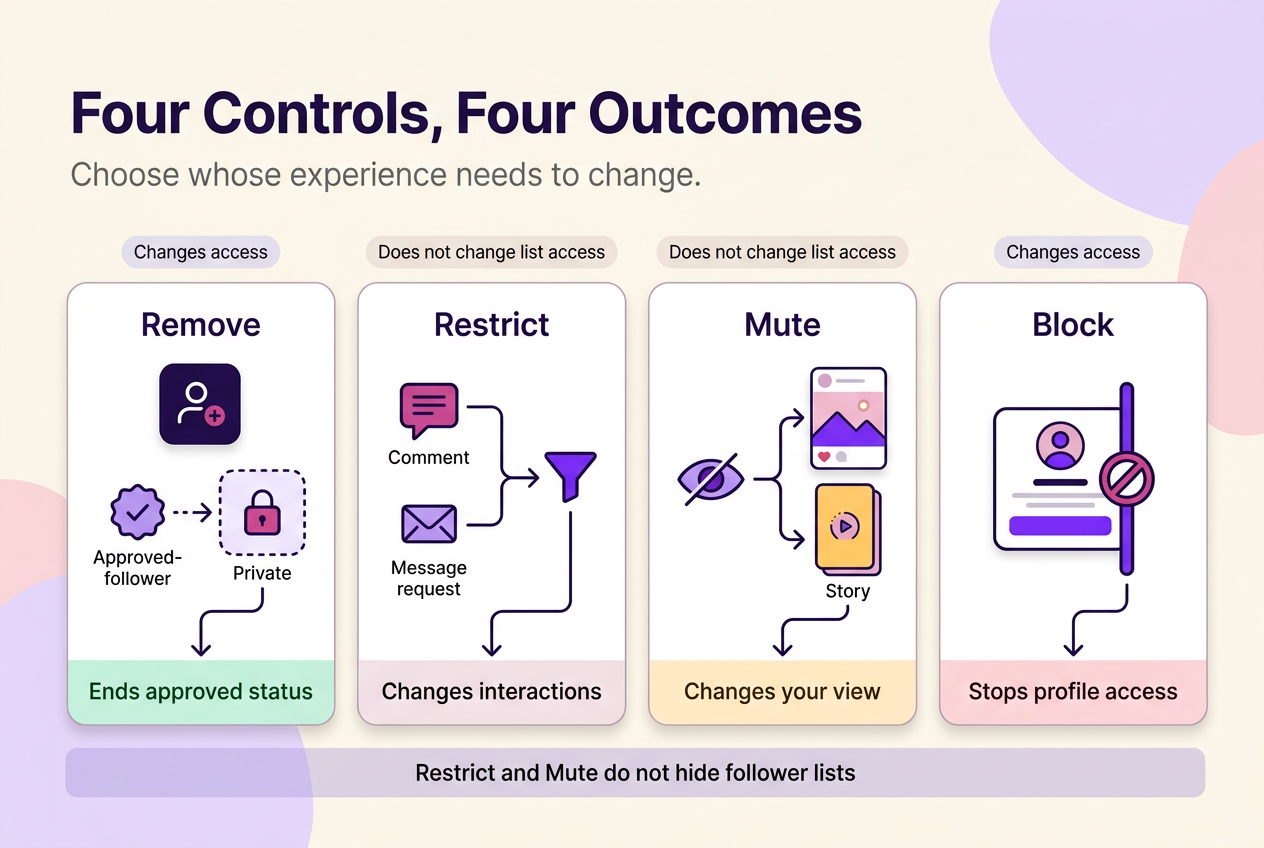
Remove, Restrict, Mute, and Block Solve Different Problems
These four controls get confused constantly because they all sound like ways to distance yourself from someone, but only two of them change whether an account counts as an approved follower or can reach your profile at all.
Remove ends someone’s status as your follower — relevant mainly on a private account, since follower status is what determines their access there. Restrict is documented as a messaging and comment-management control: it changes whether a restricted person can see your online status and message read receipts, how their comments are handled, and how message requests are routed — see Restrict or unrestrict. Mute changes what you see, not what the other account can see. Instagram documents Mute as letting you stop seeing someone’s posts, Stories, or messages without notifying them — see Mute or unmute someone. Block remains the strongest of the four, stopping the other account from finding your profile, posts, or Story at all.
If your goal is specifically to limit who can approach or find you, Restrict and Mute aren’t built for that — account privacy, follower removal, and blocking are the controls that actually change access.
Settings and Apps That Do Not Hide Your Followers or Following List
Close Friends and the Hide story and live from control manage who sees your future Stories and Live broadcasts — a separate audience from your profile connections. Instagram documents that hiding your Story from someone doesn’t stop them from seeing your profile and posts — see hide your Story from someone. Treat Story audience settings and account-connection visibility as two different controls.
No third-party app is documented by Instagram as a way to hide your follower or following list. The controls covered in this guide — account privacy, removal, and blocking — are the ones Instagram itself makes available and explains; treat any app or service claiming a separate hidden-follower feature as unverified.
If They Can Still See Something, Check Access Status and Public Social Signals
When a setting doesn’t seem to work, check two things before assuming the platform is at fault. First, confirm the account actually switched to private — if it’s still behaving like a public account, the switch didn’t take or the account wasn’t eligible. Second, check whether the person you’re trying to exclude is still an approved follower on that private account; going private doesn’t retroactively remove anyone who was already approved, so review the list and remove them directly. If the goal was cutting off one specific account rather than managing approvals generally, block is the documented control for stopping that account from finding your profile, posts, or Story.
Quick Answers About Counts, Professional Accounts, and Notifications
Follower and following counts can’t be hidden — Instagram lists them as public profile information visible whether the account is private or public, so changing privacy status affects who sees names, not the numbers themselves.
Business and Creator accounts can’t be private at all; Instagram documents professional accounts as ineligible for private status, and its private-account instructions specify that a Business profile must convert back to personal first.
Removing a follower or blocking someone doesn’t send a notification, based on Instagram’s own descriptions of both actions. That’s different from guaranteeing they’ll never notice — someone can still work out they’ve been removed or blocked simply by checking whether they can still follow, message, or find you.
No method guarantees a specific number of followers, views, or income. Results depend on niche, content quality, and account history.
 120,000+ creators say yes
 Real Active Accounts


 Username Generator
  Hashtag Generator
  Font Generator